

Users
The Users dashboard in Endura is where you manage who has access to your organisation’s account and what level of control they have within the platform. It allows you to view approved users and pending users, giving you visibility over who is already active and who is awaiting approval.
From this page, you can invite new users, assign or update roles (such as Admin), and remove access when needed, ensuring that the right people have the appropriate permissions. By using the Users dashboard effectively, you maintain control over data access, support collaboration across your team, and ensure accountability within your Endura environment.
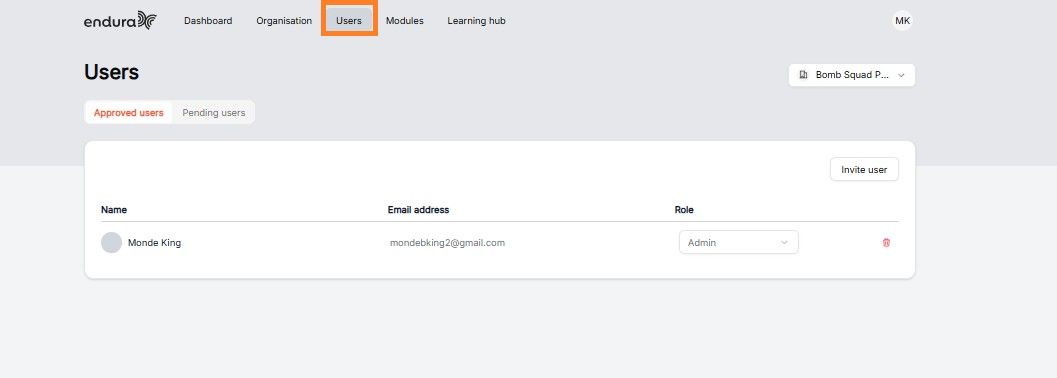
- To access users, Click on the Users tab in the Dashboard.
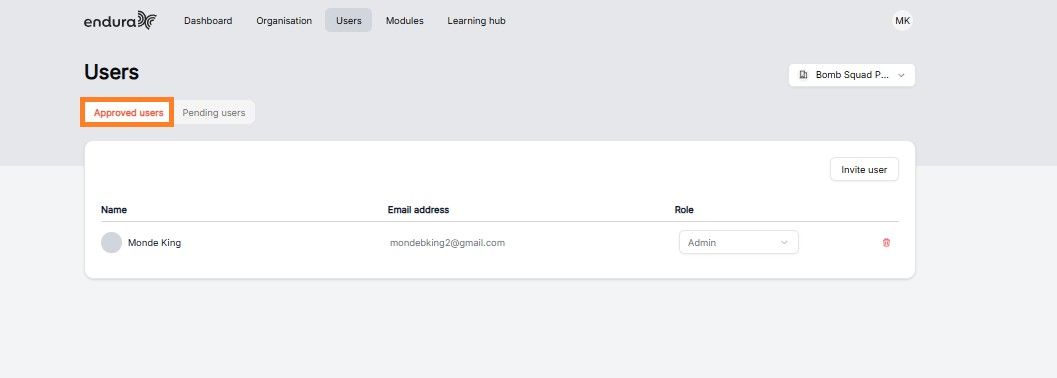
- To View Approved Users, Click on the “Approved Users Tab”.
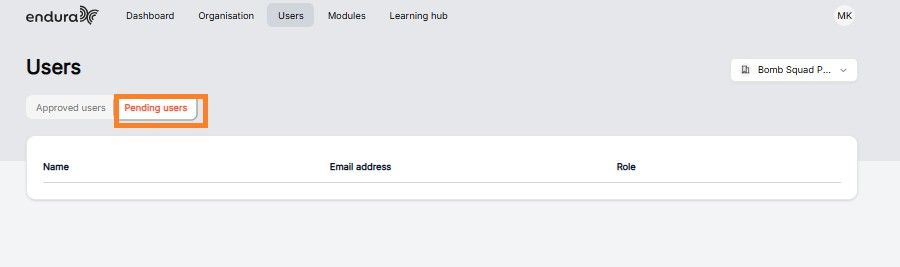
- To View Pending Users, Click on “Pending Users”. On the list below there are no requests.
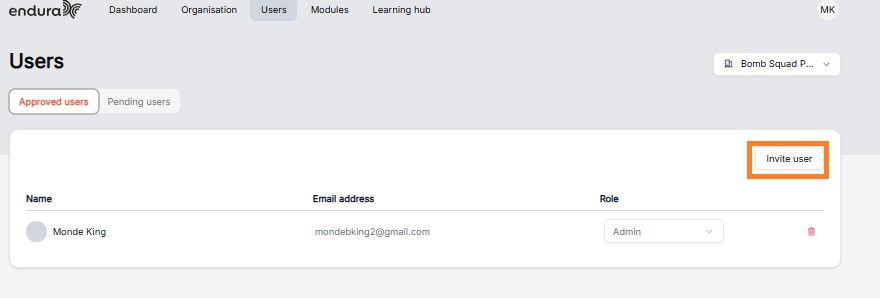
- To invite a user to contribute data to your profile, start by ensuring you’re on the approved users tab and click on “Invite User”.
- Then enter the email of the user. Ensure the email address is correct, as this is where the invitation will be sent.
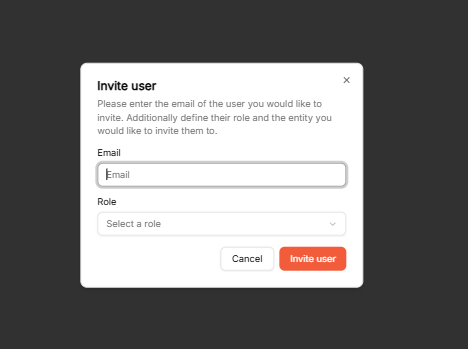
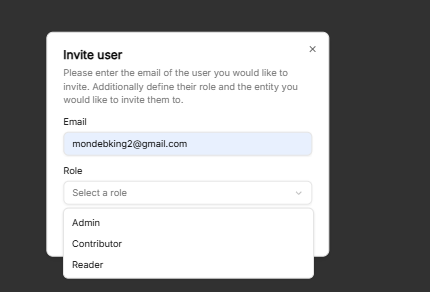
- Select the role you would like to assign to the user you are inviting to your entity.
- Click on "Invite user".
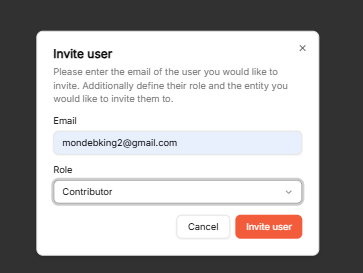
To help you select the most appropriate role for the user you are inviting, it is important to understand the permissions and level of access associated with each role. The following section provides an overview of the available role types and the access rights granted to each.
The available roles are:
- Admin: Has full access, including administrative controls over the entity and its users.
- Contributor: Can add and manage content within the entity they are associated with.
- Reader: Has read-only access to content within the entity.
- An invitation email will be sent to the user.
- The user can access the platform by clicking the link in the email.
- The user will be prompted to either sign in with the account associated with the invitation or create a new account if they do not already have one. Once completed, they will be able to access the entity.
By following these steps, you can efficiently manage who joins your organization on Endura, ensuring that each new user is properly integrated into the platform with the appropriate permissions and access levels.
VIDEO GUIDE
FREQUENTLY ASKED QUESTIONS
- I need to add or manage users, but I can’t find the Users page.”
Resolution:
- Confirm what user role you have as only Owners/Admins can manage users.
- If you don't have an admin access request for this access.
- Once approved, Go to Users tab.
- Click on Invite user to add more users to your entity and assign the relevant roles.
- “How do I invite a colleague to the platform?”
Resolution:
- Go to Users page.
- Click Invite User.
- Complete the Email address, Role (Viewer / Contributor / Owner), and entity fields.
- Click “Save and Continue”.
- The Invitee will receive an email invitation and will be guided on steps to onboard on the platform.
- I invited a user, but they didn’t get the email.
Resolution:
- Verify the email address entered is correct
- Check Spam/Junk folder.
- Wait 5–10 minutes (possible delay).
If still not received:
- Go to Users page.
- Resend invitation OR remove and re-invite.
Logging In
Stakeholders
The Stakeholders function in Endura allows you to add, manage, and track the organisations or entities you work with by inviting them to connect with your business on the platform. You can view approved and pending entities, send invitations by searching for organisations or using email, and assign relationship types, giving you clear control over your stakeholder network. This helps you build structured, trusted connections and makes it easier to collaborate and share sustainability information across your organisation and value chain.