

Create an Employment Entity
Create an Employment Entity (Company)
Create a new employment entity if your organisation is not yet registered on the platform. This will establish your organisation's structure within Endura and allow users to collaborate, manage information, and report ESG data within the correct organisational framework.
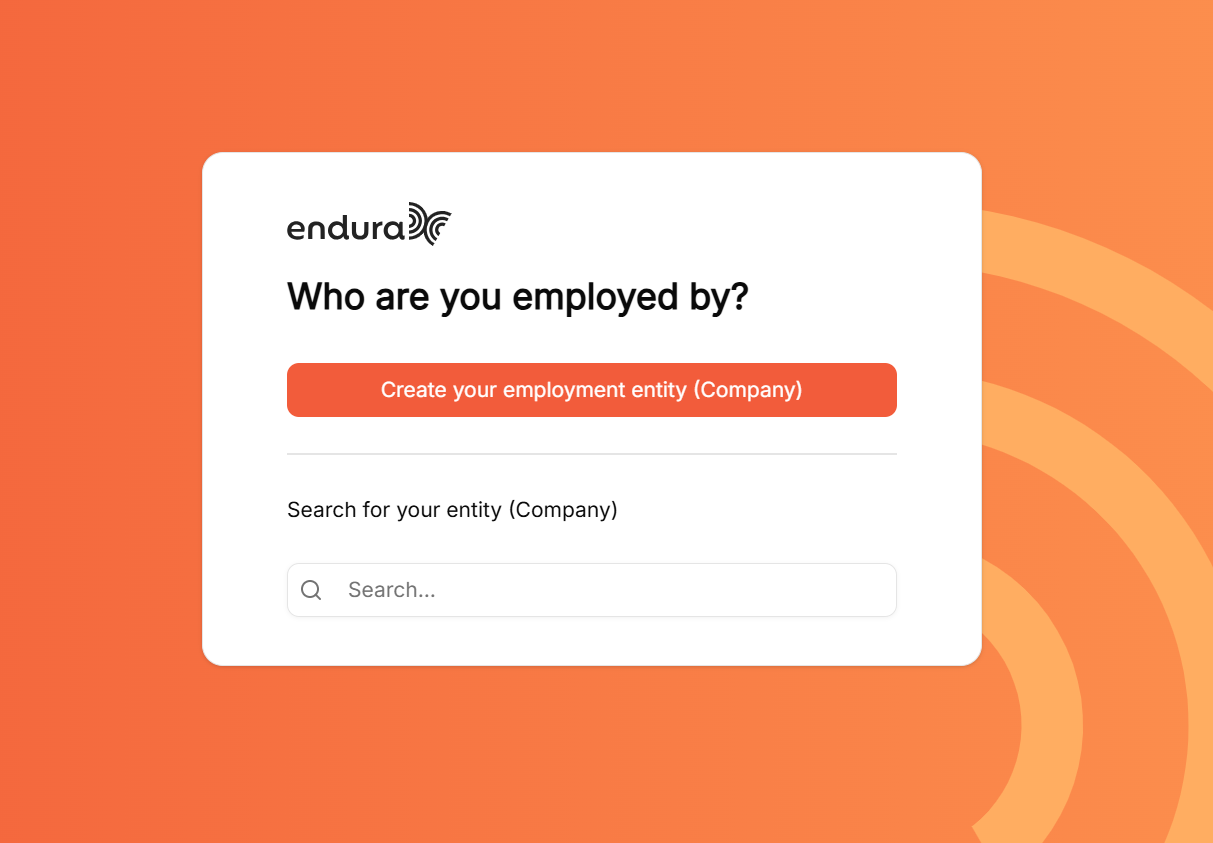
How Would You Like to Proceed?
- Create New Entity: Click on "Create your employment entity (Company)" to register your organisation on the platform.
- Enter Entity Details: Provide the required organisation information to create the employment entity.
- Create the entity: Once all required details have been completed, click "Create Entity" to create your organisation's profile and begin your ESG reporting journey on Endura.
Complete Entity Registration
To proceed with your entity registration, enter your company information, upload any required documentation, and accept the platform agreements. This process helps validate your organisation and enables a secure and compliant platform experience.
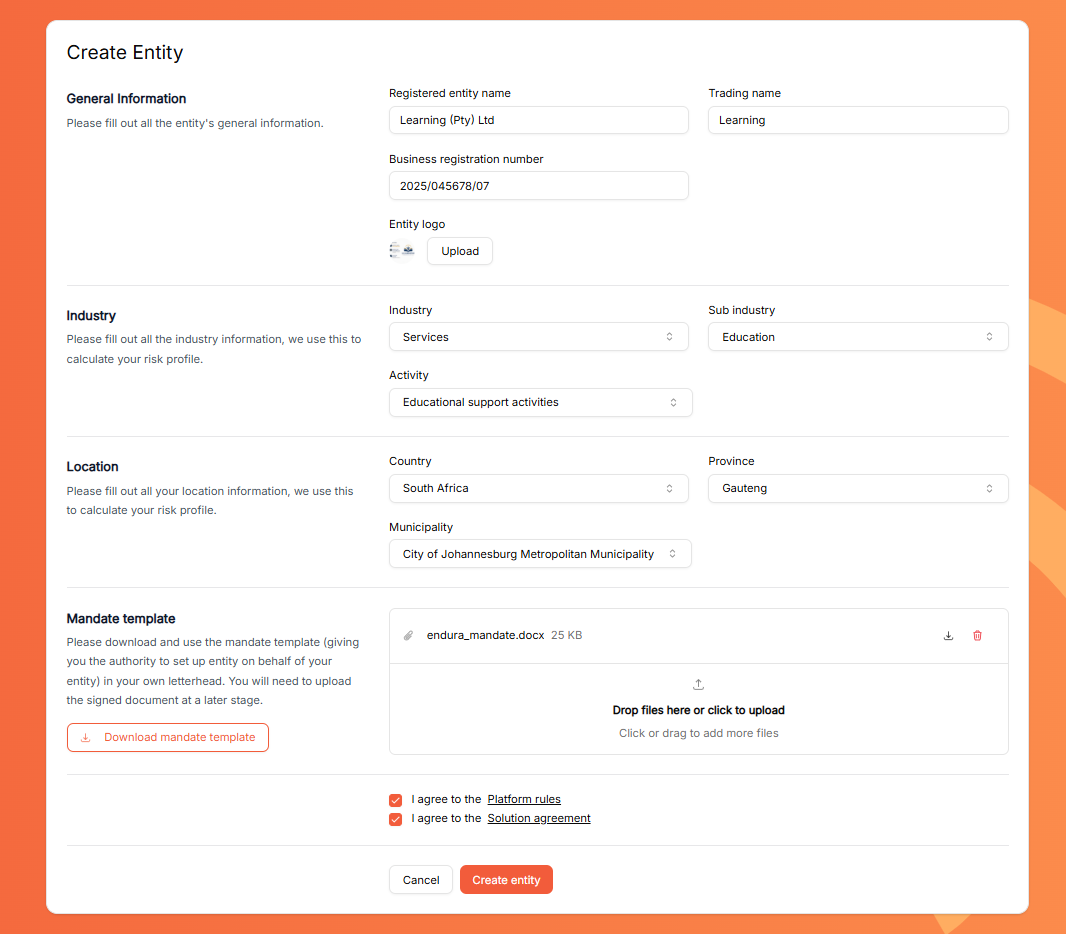
Complete Company Details
- Registered Entity Name: Official legal name of your organisation as recorded with the relevant regulatory or governing authority.
- Trading name: The name your organisation operates under publicly, which may differ from its registered legal company name.
- Business Registration Number: Enter the entity's CIPC registration number.
- Entity Logo: Upload the Entities Official Logo.
Select Industry & Location
- Industry: Select the appropriate Industry for the entity from the dropdown list.
- Sub Industry: Select a Sub Industry that your entity operates in. (If applicable).
- Activity: Select the entity's activity type from the dropdown.
- Country: Select the Country where the entity is located.
- Province: Select the province where the entity is located.
- Municipality: Choose the Municipality from the drop-down list.
Complete & Upload Mandate Documents
- Download the Mandate template.
- Complete it and then upload it to complete registration.
- Agree to Platform Rules.
- Agree to Solution Agreement.
- Click on Create entity.
After following these steps, your entity will be successfully created on the Endura platform.
Navigate Walkthrough Screens
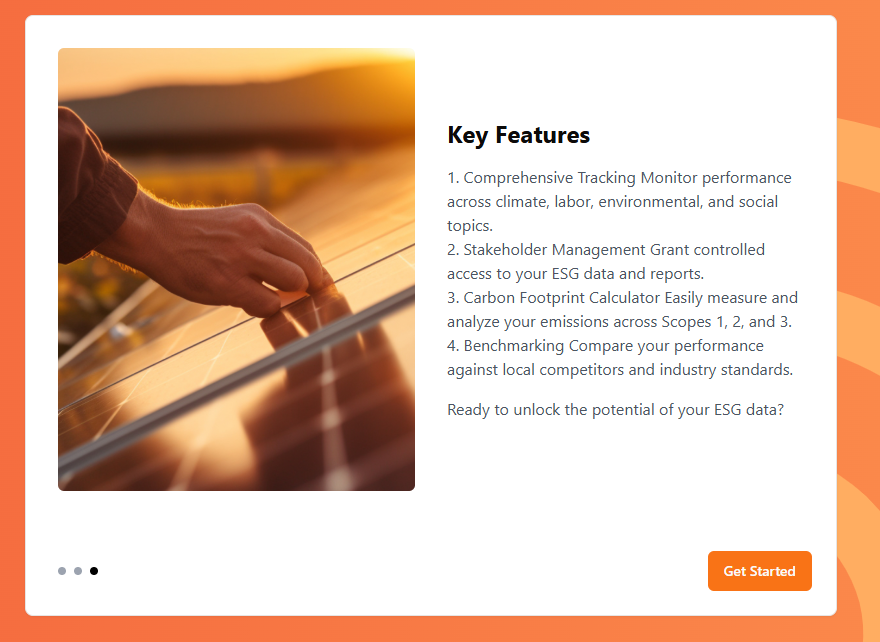
We’ll guide you through a short walkthrough to help you get familiar with the platform’s key features and navigation.
- Watch this video for a quick introduction to Endura and how it helps you manage, track, and report on your ESG data.
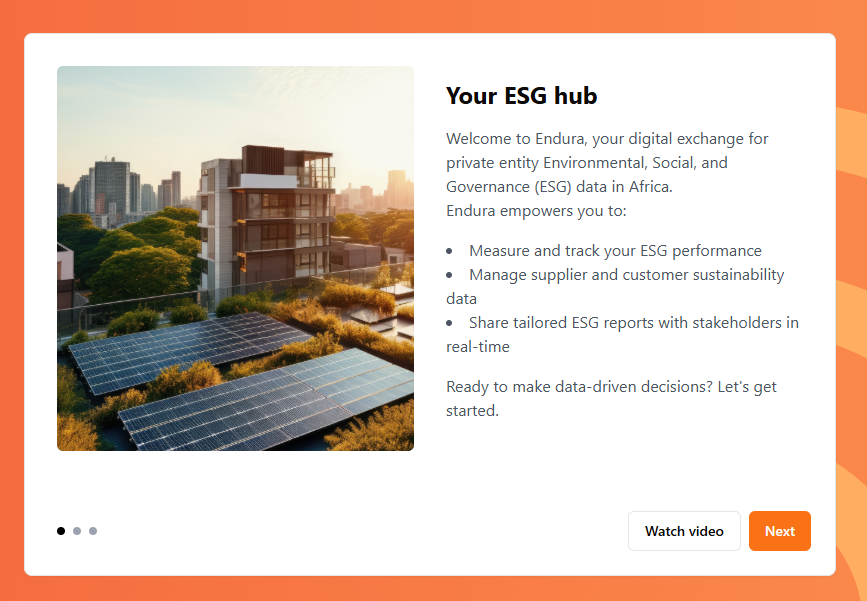
- Watch this video to learn how Endura provides Africa-specific ESG insights, benchmarks, and tools to support your sustainability journey.

- Watch this video to explore Endura’s key features, including ESG performance tracking, stakeholder management, carbon footprint analysis, and industry benchmarking.
Pending Approval
You've successfully completed the registration process and created your entity on the Endura platform. The Pending Approval screen confirms that your application is under review by the platform administrator. Once approved, you'll receive a notification and gain full access to add and manage ESG information. Until then, you can explore your dashboard and familiarise yourself with the platform, ensuring you're ready to get started as soon as your approval is complete.
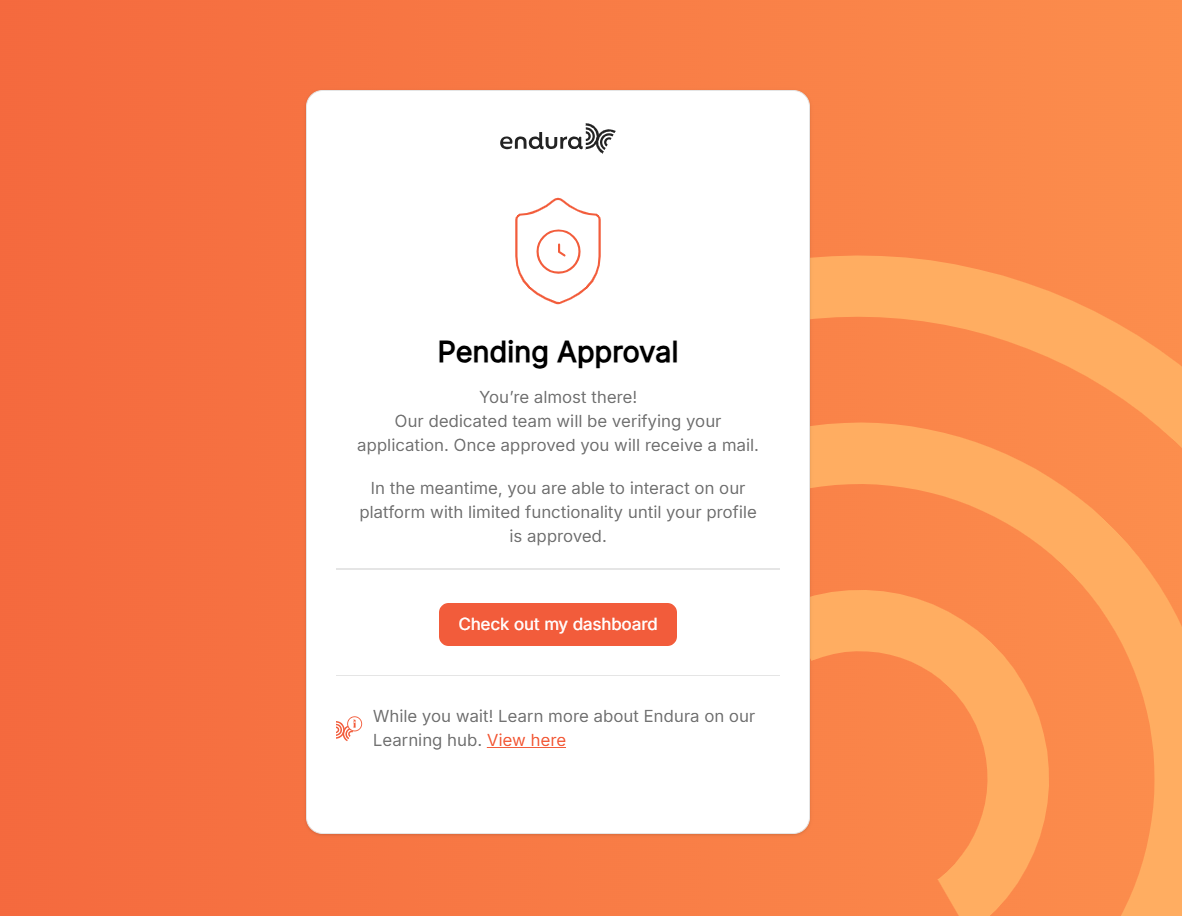
- Pending Approval Dashboard View.
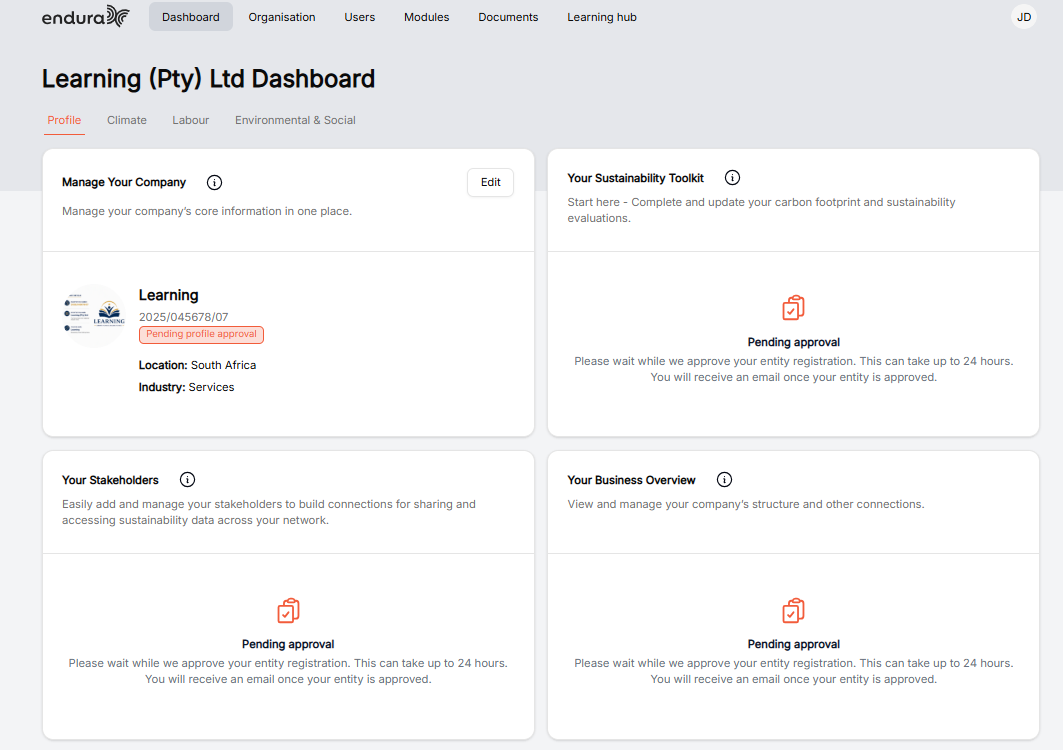
Once your access request has been approved, you're ready to start using Endura.
Start Using Endura
- Access Your Dashboard: Once you have logged in, you will be taken directly to your Endura dashboard, where you can begin exploring your organisation's data, accessing key modules, and managing your ESG information.
FREQUENTLY ASKED QUESTIONS
- I don’t see my company listed, should I create a new employment entity or search again?
Resolution
- Enter the company name in the “Search for your entity” field.
- Try variations of the company name (e.g., abbreviations, full legal name).
- Ensure there are no typos or missing words.
- Use the registered entity name if unsure.
- Search for the company using a different name.
- If the company is still not found. click “Create your employment entity (Company)."
- I’m not sure what to enter for ‘Registered Entity Name’ vs ‘Trading Name.
Resolution:
- Registered Entity Name = Legal name on official registration documents
- Trading Name = Name the company operates under publicly.
- Check and use your Official company documents to ensure the accurate information is captured.
- “I can’t upload my company logo.”
Resolution:
- Confirm the file format is supported (e.g., PNG, JPG).
- Rename the file (avoid special characters).
- Try to re-upload the image
- Try using a different browser.
- Check that your internet connection is table.
- I don’t know which industry, sub-industry or activity to choose.
Resolution:
- Select the primary industry the company operates in.
- Choose the option that reflects main revenue-generating activity
- If multiple industries apply: Select the most material activity.
- I uploaded the mandate, but it’s not accepted.
Resolution:
- Confirm that the mandate document is signed.
- Check file format (PDF recommended).
- Ensure: File size is within limits.
- Rename file (remove special characters).
- Re-upload the document.
- Try uploading the document on an alternative browser
- I completed everything but can’t submit the profile.”
Resolution:
- Check for: Missing required fields (marked with *).
- Confirm that all dropdowns are selected correctly.
- Ensure the Mandate document is uploaded.
- Refresh page and retry.
- Clear browser cache if needed.
- Try a different browser.