

Create an Account
Create an Account
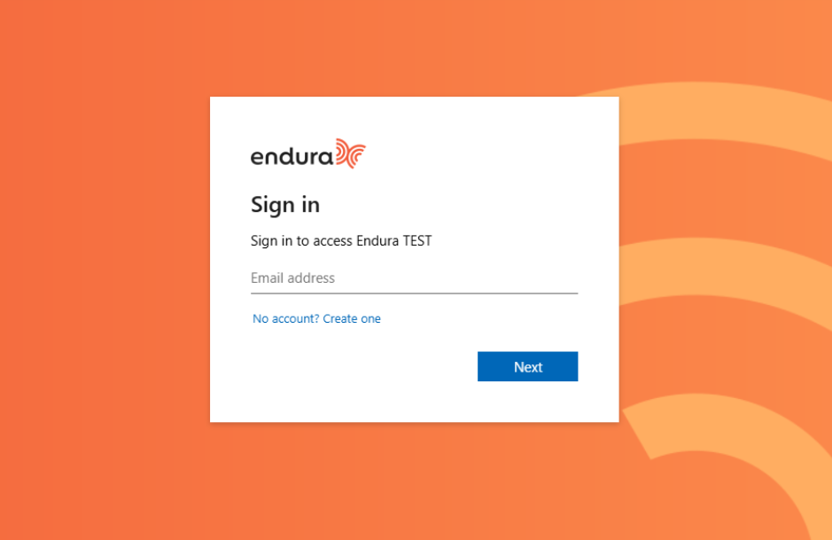
Signing Up on the Endura Platform
To begin using the Endura platform, follow these steps to sign up and create your account:
Step 1: Access Login & Sign Up
- Start your onboarding by opening your browser and visiting the Endura login page.
- On the sign-up page select “No account? Create one" to create an account.
- Then Enter your email address.
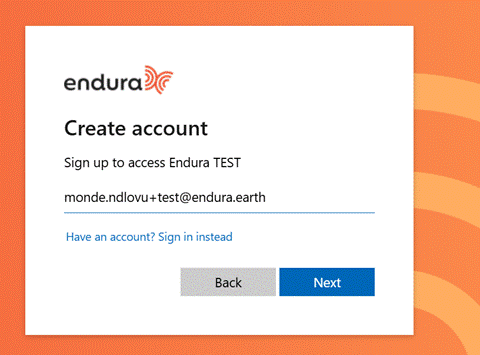
Step 2: Verify Email & Create Password
Please provide your email address and complete the verification process. You will then be guided to securely create a password to proceed with your onboarding journey.
- Verify your Email Address.
- Create Password: Minimum of 8 characters. Include at least 3 of the following: Lower case letters (a-z) Upper case letters (A-Z) Numbers (0-9) Special characters (e.g.! @#$%^&*).
- Re-enter and confirm your password.
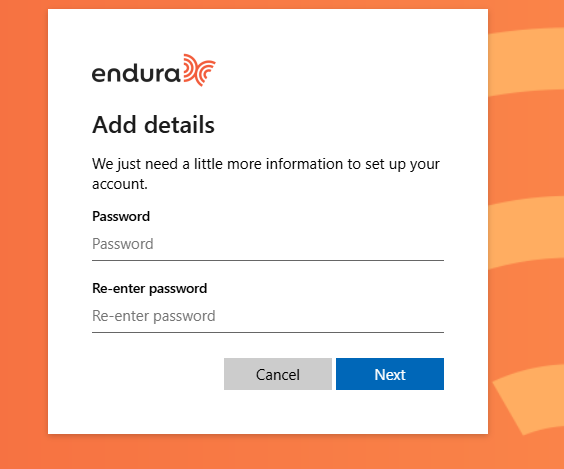
- After entering your email and creating a password, click "Next" to proceed.
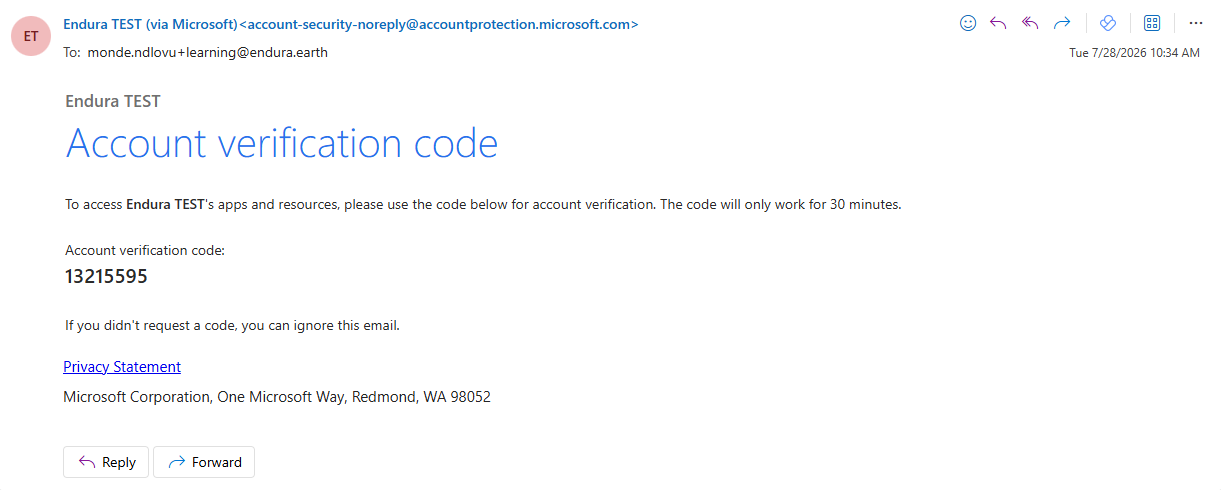
- Check your email for the verification code, then use it to validate your email address.
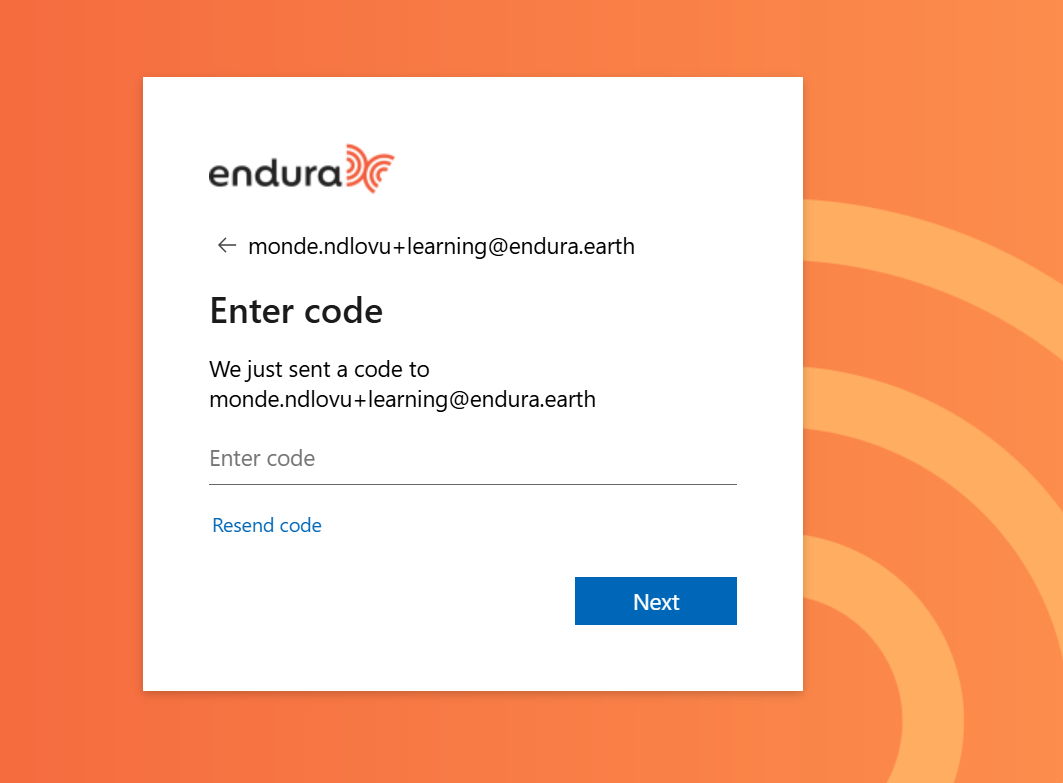
- Verification Email View.
Once you have completed these steps, you will be guided to the next step in the onboarding process which is completing your profile. This information is required to activate your account and gain access to the platform's ESG management and reporting features.
Step 3: Complete Your Profile
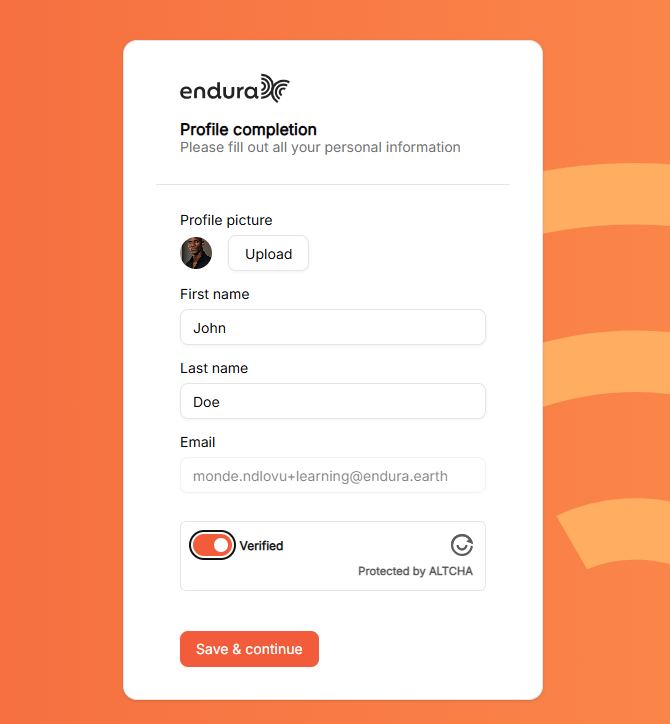
Complete your profile setup by adding a profile photo and providing the required personal information. This will activate your account and allow you to fully engage with the platform.
- Upload your Profile Picture by Clicking Upload.
- Enter your First & Last Name in the designated fields.
- Your Email will prepopulate into the email field based on the email you used during the initial sign-up.
- Toggle “Verified” to confirm you’re not a robot.
- Click Save & continue.
Once these steps are completed, your account will be activated and ready to use.
Video Guide
https://youtu.be/7XWf5lhdLo4
FREQUENTLY ASKED QUESTIONS
- I entered my email, but I can’t access my account.
Resolution Steps:
- Confirm that you've entered the correct email address.
- Check for spelling mistakes or typos.
- Ensure there are no leading/trailing spaces.
- Check if your email was copied and pasted: If yes, re-enter it manually.
- Check whether you've used an alternative email address.
- Check for a welcome email from Endura.
- I didn’t receive the verification code.
Resolution Steps:
- Check your Spam/Junk folders.
- Confirm the correct email address was entered.
- Wait 2–5 minutes for email delivery.
- Click “Resend Code”.
- My Verification code is invalid.
Resolution Steps:
- Confirm the code is entered exactly as received.
- Retype the code manually. Confirm the code has not expired.
- Request a new code.
- Double-check that you're using the latest code sent.
- “I forgot my password.”
Resolution Steps:
- Direct user to click “Forgot Password.
- Enter registered email address.
- Check email for password reset link.
- Guide user to create a new password.
- Verify successful login after reset.
- My password is correct, but I can’t log in.
Resolution Steps:
- Check if Caps Lock is enabled.
- Confirm that your password is entered with the correct case sensitivity.
- Ask if browser has saved incorrect credentials.
- Clear saved passwords.
- Re-enter password manually.
- Clear your browser cache and history.
- Trying a different browser/device
- Why isn’t my email being accepted?
Resolution Steps:
- Confirm email formatting is correct.
- Check for spaces from copy/paste.
- Re-type your email manually.
- Ensure no invalid characters are present.