

Modules
Modules allow you to manage and activate different sustainability modules such as Climate, Environmental & Social, Labour, and Profile based on your organisation’s needs. It provides a structured space where you can enable features like Company Information, capture key data such as revenue and employee details, and build the foundation for your sustainability reporting. By activating relevant modules, you can tailor the platform to support your specific sustainability goals and ensure you are capturing the right data for assessments and insights
• To view and access all available modules click on the Modules tab.
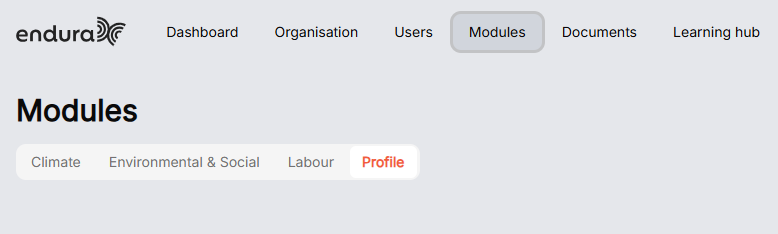
Profile
In the Profile assessment, you can capture and review key organisational information such as your company details, structure, and basic operational data. This information forms the foundation for your other sustainability modules, ensuring your assessments and insights are accurate and aligned with your organisation’s context.
• To complete the assessments, click Activate, then click start.
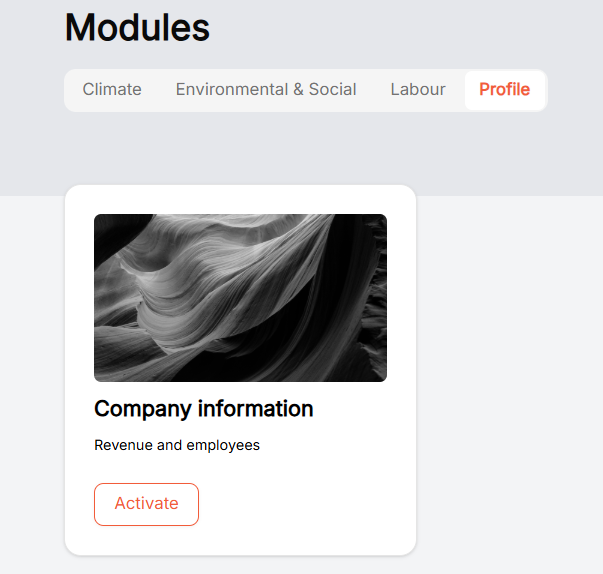
Company information
Revenue and employee numbers captured in the Endura company information module help provide a clear profile of the client’s size, scale, and business activity. This information is used to support appropriate risk assessment, segmentation, and service positioning, ensuring the company receives solutions that match its operational needs. By collecting these details, users can feel confident that the system is tailoring insights, compliance requirements, and support levels specifically to their business context.
- To complete the profile assessment, start by completing the “Revenue” and “Number of “Employees” field, then click complete once you’re done.
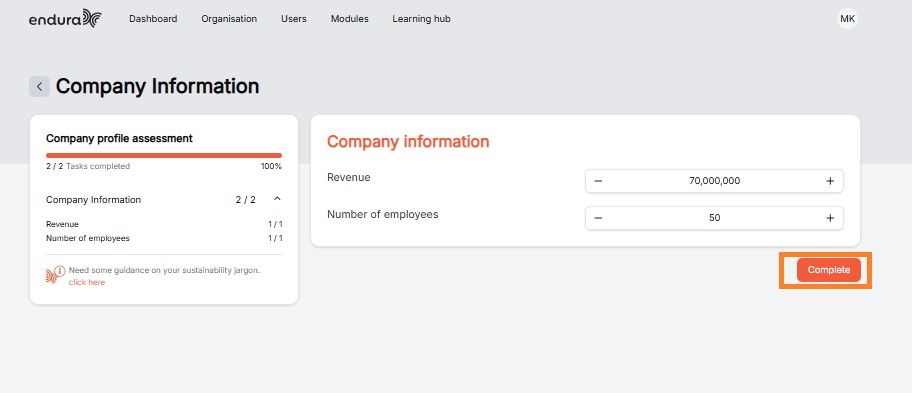
- Once the assessment is completed it will show as a completed task.
Climate Module
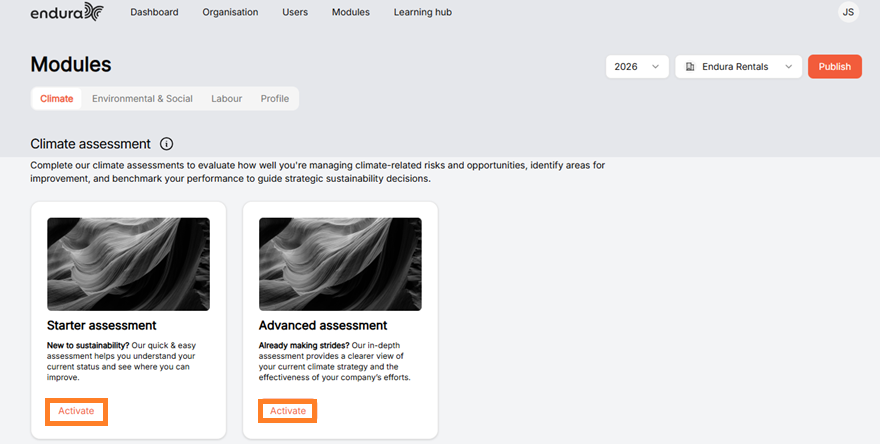
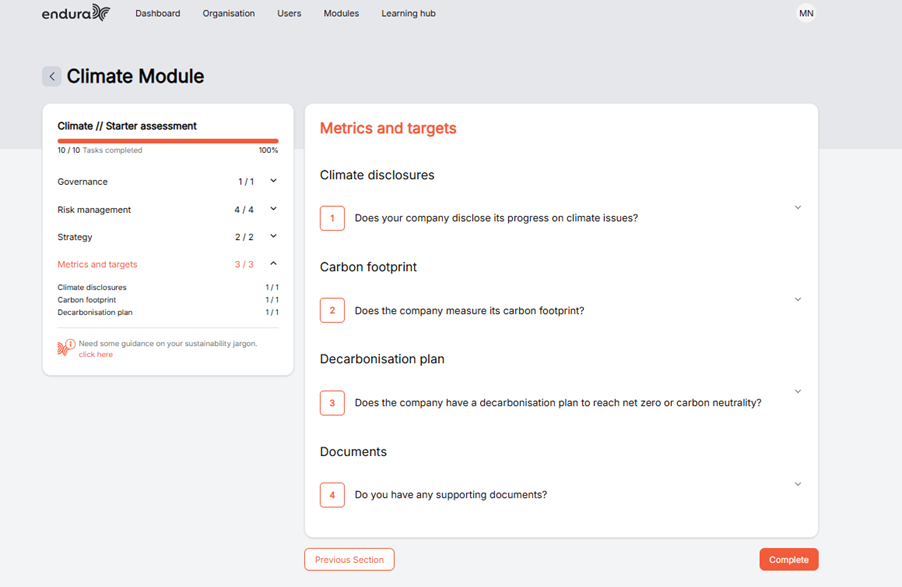
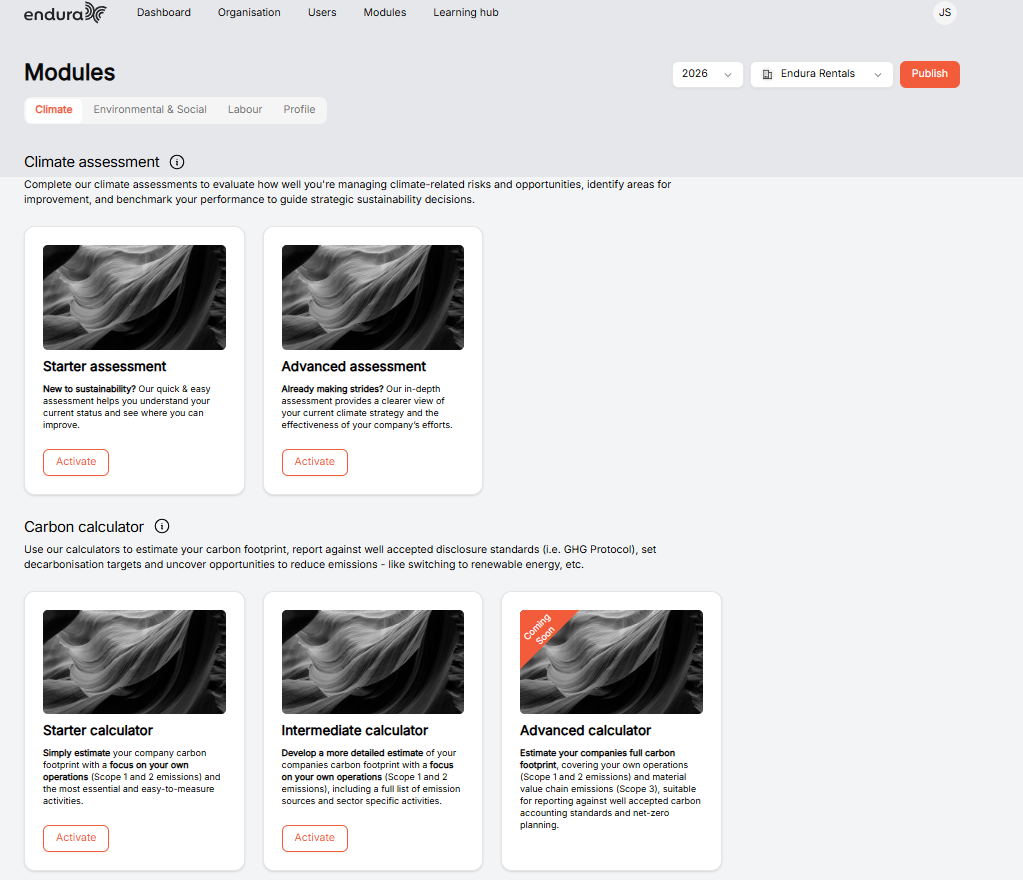
In the Climate assessment module, you can choose between a Starter or Advanced assessment to understand and strengthen how your organisation manages climate risks, strategy, and performance, while also using built-in carbon calculators to quantify your emissions. The Starter assessment helps you quickly map where you stand with minimal input, whereas the Advanced assessment allows you to dig into more detailed, evidence-based responses for a clearer, more mature view of your climate approach. In the same way, the Starter calculator gives you a quick estimate based on simple operational data, while the Intermediate calculator breaks emissions down in more detail across activities, giving you a more accurate and useful picture to support decision-making.
- To access the climate module, click on the Climate tab.
- To complete the climate assessment, click activate to assess how well you're managing climate-related risks and opportunities.
- Once a section has been completed, click next Section.
- When you’ve answered all the questions in the Module, click complete.
Carbon Calculator
The carbon calculator is used to estimate a company’s greenhouse gas emissions based on its activities, helping you understand their environmental impact and identify areas for reduction. A starter assessment is ideal for entities with limited data, providing a quick, high-level estimate using basic inputs to get an initial view of emissions. An intermediate assessment is used when more detailed data is available, allowing for a more accurate and comprehensive calculation to support better decision-making and reporting.
- To estimate your carbon footprint against well accepted disclosure standards. Click activate on your starter and intermediate calculator then click configure.
Scope 1 Emissions
Direct greenhouse gas emissions produced from sources that a company owns or controls, such as fuel burned in company vehicles or on-site equipment. These emissions are the most immediate and measurable, as they come directly from the organisation’s own operations.
- To set up your Scope 1 starter calculator, review each emission source and indicate whether your organisation uses it. Select Yes for every source that applies to your operations and No for those that do not.
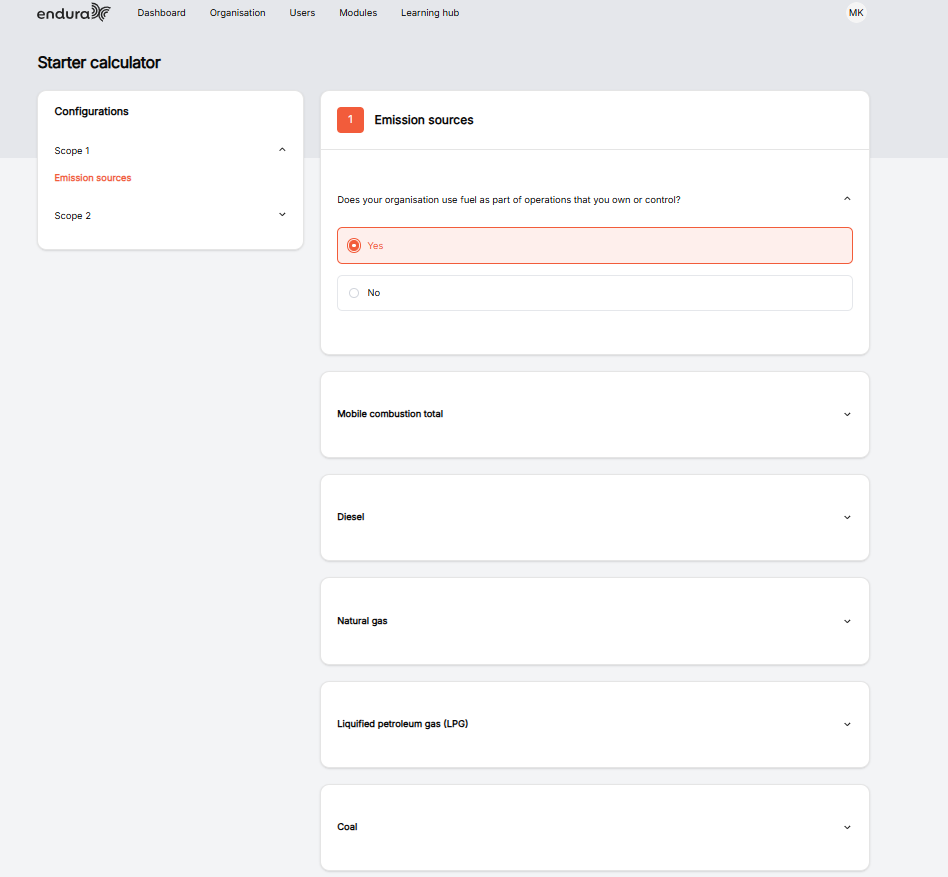
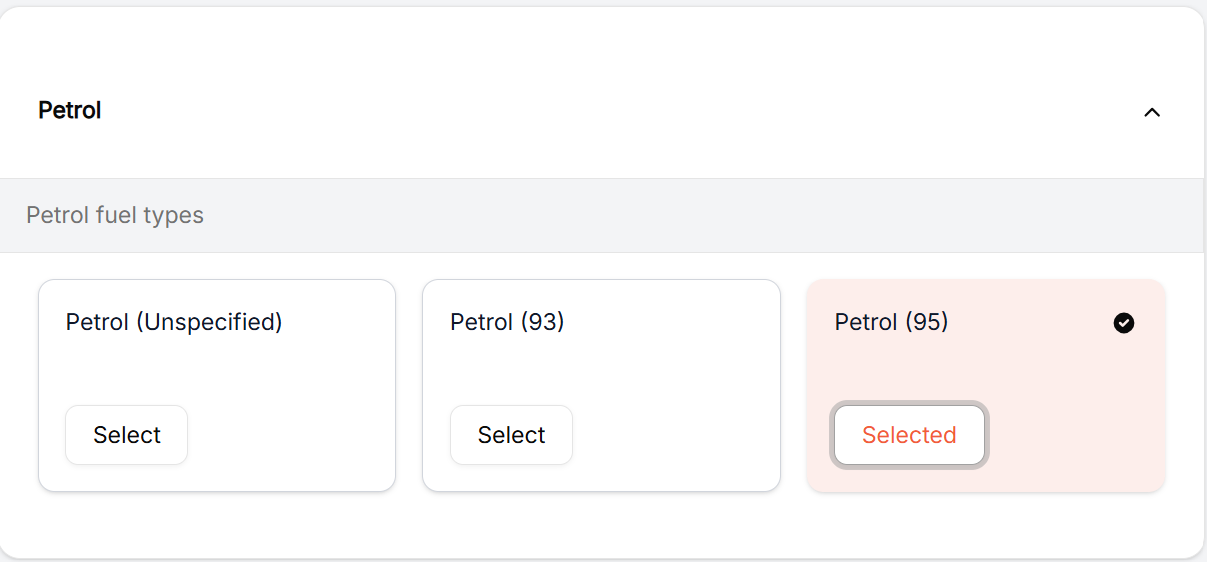
- Next, scroll through the emission source options. After making your selection, use the dropdown to choose the option that applies to your organisation. Then Click Next.
Scope 2 Emissions
Scope 2 emissions refer to indirect greenhouse gas emissions that result from the generation of purchased energy, such as electricity, heating, or cooling used by a company. These emissions occur at the source where the energy is produced but are attributed to the organisation because they are a direct result of its energy consumption.
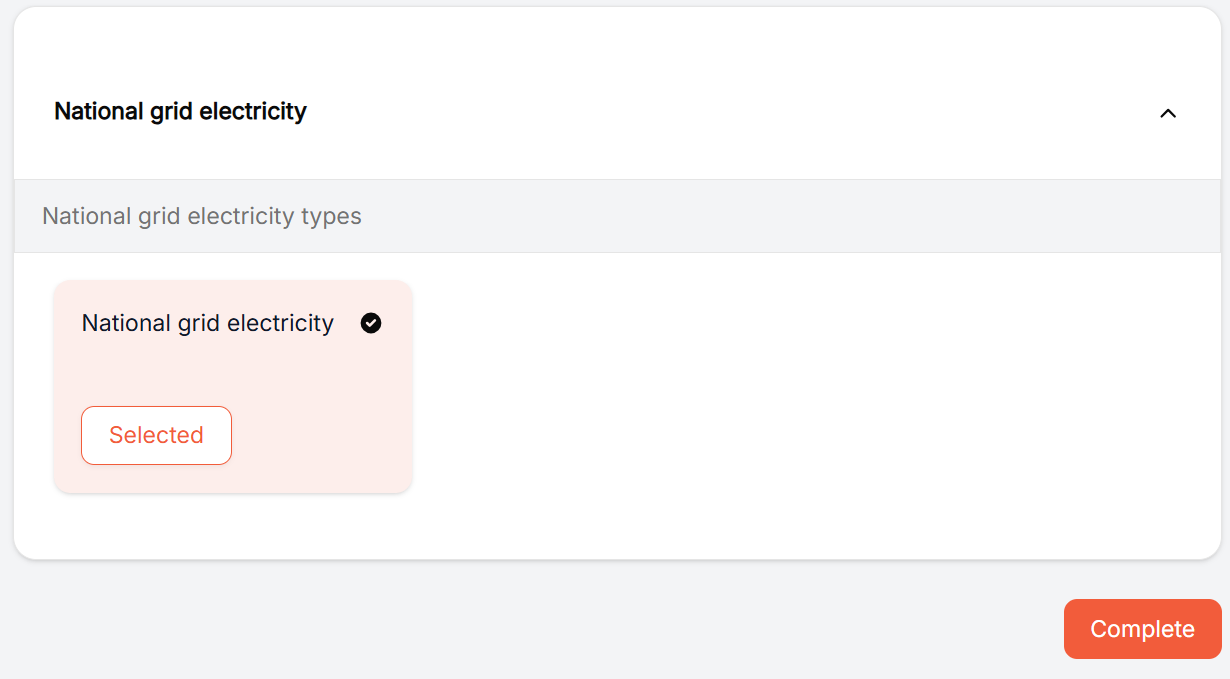
- To set up your Scope 2 starter calculator, review each emission source and indicate whether your organisation uses it. Select Yes for every source that applies to your operations and No for those that do not.
- Next, scroll through the emission source options. After making your selection, use the dropdown to choose the option that applies to your organisation. Then click Complete.
Starter and Intermediate Calculator
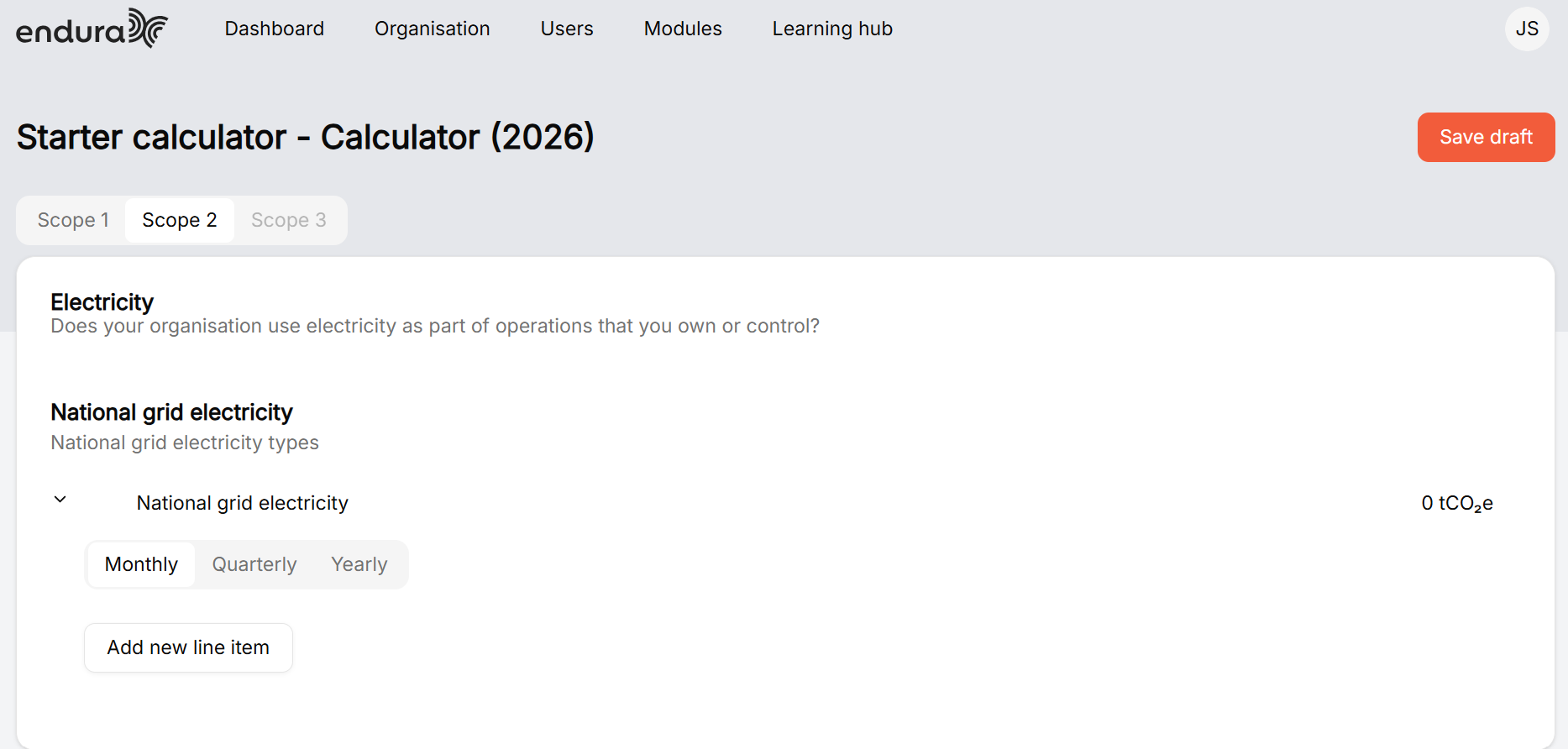
In this section, you will capture activity data for the emission sources that contribute to your organisation’s Scope 1 and Scope 2 greenhouse gas (GHG) emissions. Depending on the emission source selected, you will be required to enter the relevant usage data. In this example, the emission source selected is Fuel.
Choose reporting frequency
Decide how you want to record data:
- Monthly.
- Quarterly.
- Yearly.
Add activity data
Click Add new line item to add a fuel consumption record. Complete the required fields, including Item Name, Model, Accuracy, Unit, and fuel consumption value. Repeat this step to add additional records. Refer to the screenshot below for guidance.
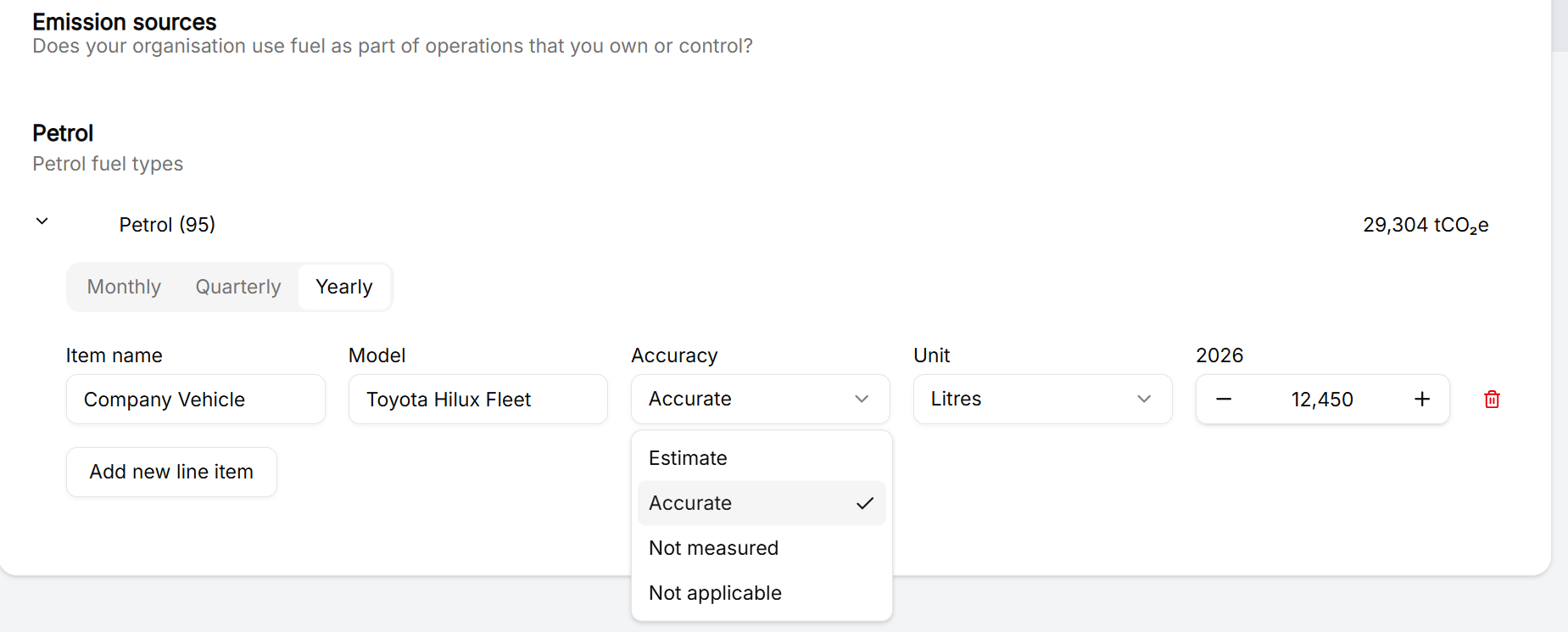
Item Name: Enter a descriptive name for the asset, activity, or fuel-consuming source being recorded (for example, Company Vehicle).
Model: Specify the model, type, or identifier of the asset to help distinguish it from similar items (for example, Toyota Hilux Fleet).
Accuracy
Accurate
- You are entering actual, measured data.
- Example: real fuel receipts, fleet logs, or exact litres used.
- This is the highest-quality data and gives the most reliable emissions calculation.
Estimate: You don’t have exact data, but you’ve made a reasonable, informed calculation.
Not Measured: **** You don’t track or record this data at all.
Not Applicable: This emission source does not apply to your organisation
Unit
- Litre: You are entering the actual volume of fuel used
- Rands: You are entering money spent on fuel, not the fuel itself.
- You are entering already calculated emissions (kilograms of CO₂ equivalent).
Endura will calculate and display the emissions (tCO₂e) based on the data you enter.
Save your progress by using “Save draft” to keep your work and return later if needed.
Environment & Social Module
This Module helps you assess how your business impacts the environment and society, guiding you to understand risks, responsibilities, and opportunities for improvement. It allows you to evaluate areas such as resource use, waste, emissions, and social practices so you can make more informed, sustainable decisions within your operations.
You should use the starter assessment when you are beginning your sustainability journey or establishing a baseline, as it helps you identify key environmental and social impact areas using simplified, high-level inputs. The advanced assessment is best when you have more detailed data available, as it enables you to perform a deeper analysis, track performance more accurately, and support more strategic sustainability planning.
- Click on the Environmental & Social tab to access the Environmental & Social module.
- To complete the Environmental & Social assessment, click activate to evaluate how effectively you govern and manage key environmental and social risks and impacts.
- Make sure you answer every question before moving on. Each question includes a dropdown menu that you need to select an option from. Once you’ve selected, the question will be marked as complete. Be sure all questions are completed before proceeding to the next task.
- After completing each task in the assessment, click on “Next Section.
- At the end of the Module Assessment, click complete.
Video Guide
Labour
This module helps you assess how your business manages its workforce, ensuring fair labour practices, employee wellbeing, and compliance with relevant standards. It guides you to evaluate areas such as working conditions, employee rights, health and safety, and diversity so you can better understand and improve how you support your people.
You should use the starter assessment when you are beginning to formalise your labour and workforce practices, as it helps you establish a baseline understanding of key labour risks and responsibilities using high-level inputs. The advanced assessment is best when you have more structured policies and detailed data available, allowing you to perform a more in-depth evaluation and strengthen your labour practices through targeted improvements and monitoring.
- Click on the Labour tab to access the Labour module.
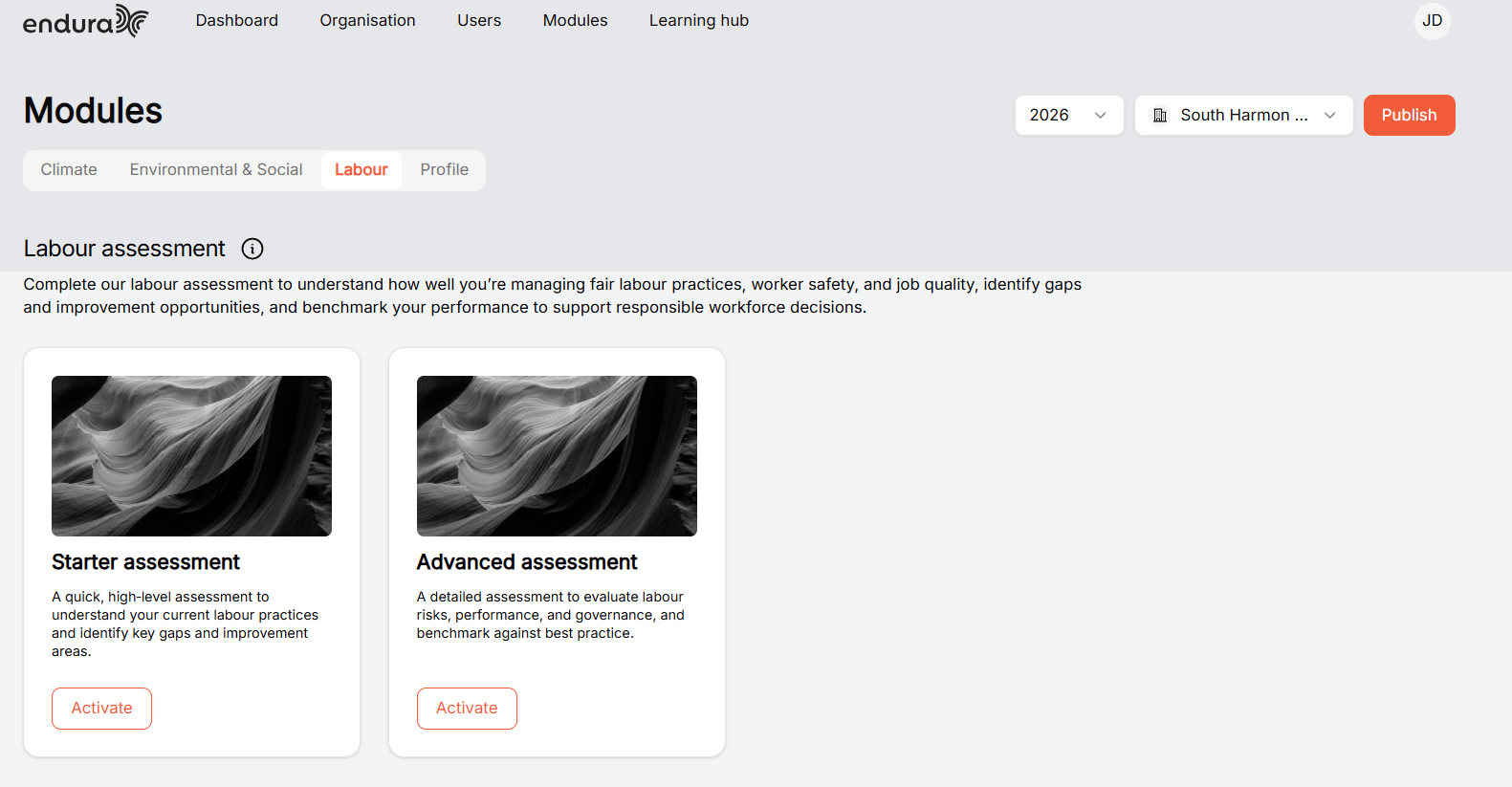
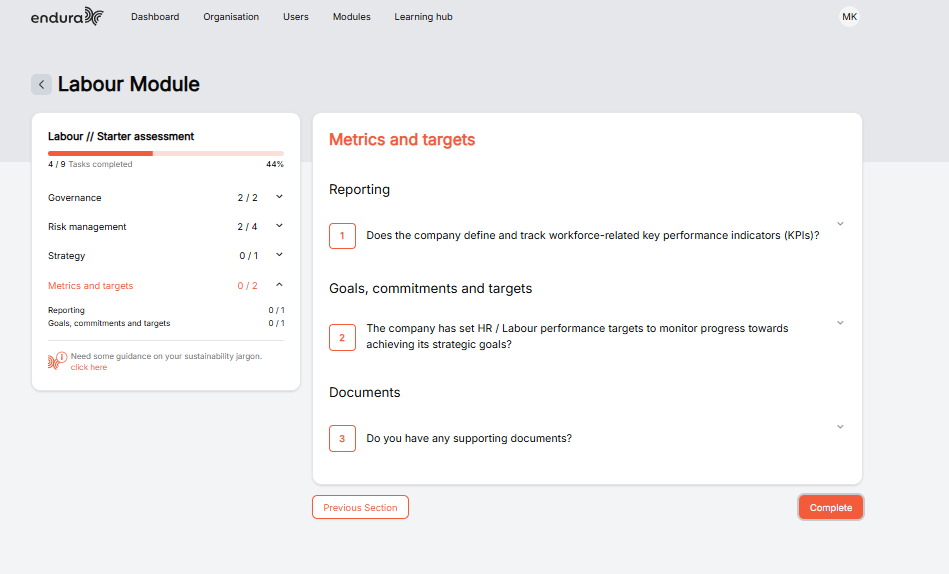
- To complete the Labour assessment, click activate to evaluate how well you’re managing fair labour practices, worker safety, and job quality, identify gaps and improvement opportunities.
- Ensure you answer every question before moving on.
- Each question includes a dropdown menu that you need to select an option from. Once you’ve selected, the question will be marked as complete. Be sure all questions are completed before proceeding to the next task.
- After completing each task in the assessment, click on “Next Section.”
- At the end of the Module Assessment, click complete.
Video Guide